 GridEon
Docs / Inverters
Must (PV1800 / PV1900)
GridEon reads Must off-grid inverters from the PV1800 and PV1900 series (and the models with the same register map, PH1800 and EP1800), through the manufacturer's Modbus RTU protocol: straight over USB or over RS485. The driver is tested on a PV1800.
| USB | RS485 | |
|---|---|---|
| What you need | the inverter's USB cable | USB–RS485 adapter + network cable |
| Inverter port | USB | RJ45 COM: pin 1 = B, pin 2 = A |
| Speed | 19200 baud, 8N1 | 19200 baud, 8N1 |
| Modbus address | 4 | 4 |
Connecting over USB
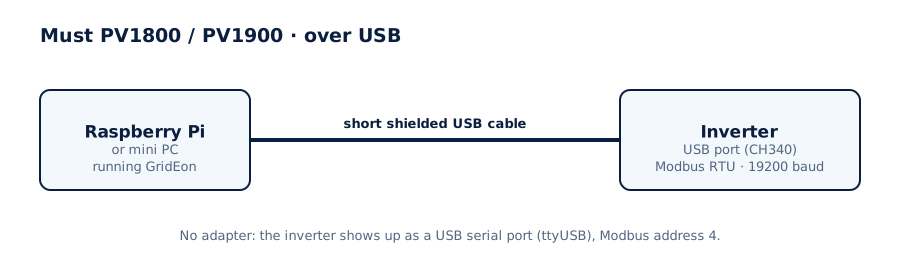
- Connect the inverter's USB port to a USB port on the GridEon device. A short, shielded cable works best.
- In Settings → Inverter choose the Must brand, the PV1800 / PV1900 model and the USB · straight into the inverter connection.
- The inverter shows up as a serial port (
/dev/ttyUSB…, it has a CH340 chip inside). Pick it, then Test connection and Save.
Connecting over RS485
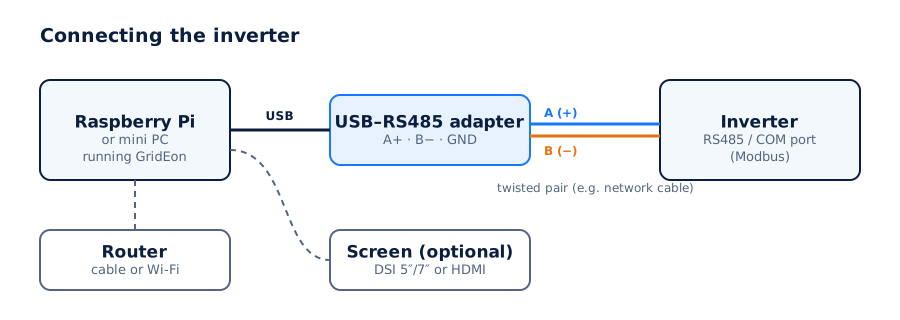
- Use a USB–RS485 adapter (FTDI or CH340 chip) and a network cable (twisted pair).
- Use the inverter's RJ45 communication socket (marked COM / RS485): pin 1 = B (−), pin 2 = A (+). GND isn't needed.
- Wire A on the inverter to A (+) on the adapter and B to B (−). GND only if both have it.
- Plug the adapter into a USB port on the GridEon device.
In Settings → Inverter choose the Must brand, the PV1800 / PV1900 model, the RS485 · Modbus RTU connection and the adapter's port. Speed 19200 and address 4 are already filled in.
What GridEon reads
Panel power and voltage, the battery (voltage, current, charge and discharge power), the grid, the load, the AC output, temperatures, the working state, translated faults and warnings, and total energy (PV, battery, grid, load). The PV1800 doesn't report the battery percentage (SOC), only the voltage; the PV1900 reports SOC, battery health (SOH) and the second panel string (PV2).
Settings you can change from GridEon
In Devices → Inverter, the Inverter settings panel reads settings straight from the inverter. Every change asks for confirmation, and after writing GridEon reads the value back to check it was accepted.
- Priorities: energy use mode (SBU, SUB, UTI, SOL), battery charger source, where solar energy goes, grid input voltage range.
- Battery: battery type, capacity, the switch-to-grid and back-to-battery voltages (SBU), the battery cut-off voltage.
- Charging: Bulk and Float voltages, max charging current from PV, from the grid and in total.
- Equalisation for lead-acid batteries: on/off, voltage, duration, max time and interval.
- AC output: output voltage and frequency, eco mode (load search).
Troubleshooting
- RS485: “unexpected Modbus response”: check speed 19200 and address 4; if you changed them in the inverter menu, enter the same values in GridEon.
- USB and RS485 at the same time: use only one connection to the inverter.
- The inverter stays Offline: check the port chosen in Settings and the cable. On RS485, swap A and B, it's the most common cause.
- The adapter isn't listed: unplug and replug it, then reload the settings page.
- You unplugged the cable: the inverter shows Offline with the reason; reading resumes by itself once you plug it back in.